User Settings for Reusable Rules Tooltip Preview
When you hover over a rule, you can view its execution steps directly in a tooltip. To manage how these steps are displayed, we’ve introduced a new option in User Settings, available through a newly added menu, found under your name at the top right corner. These preferences apply per user, not per company. This means if a user has access to multiple companies, the same settings will be applied across all of them.
Under Show rule steps in tooltip, there are three available display options:
Show all rows: displays every step of the rule.
Show only first 3 and last 3 rows: limits visibility to the first and last three steps.
Do not show: hides the rule steps entirely.
After saving your selection, the system immediately applies the chosen configuration.
New Bulk Edits Dropdown
The new Find and Replace functionality is now available under the Bulk Edits drop-down menu. In addition to standard find and replace actions, a new option called Find and Replace Existing Rules in Steps has been introduced.
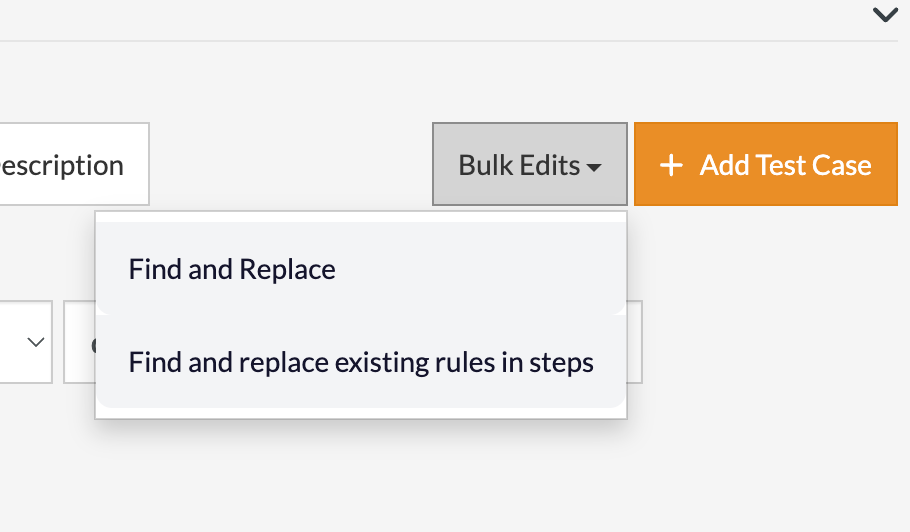
Caption: The Bulk Edits dropdown.
When you select this option, a pop-up window appears with two choices. You can replace reusable rules in test cases or replace reusable rules themselves. After you click Confirm, the system automatically starts a background job. You can track the progress in the Background Jobs section located in the left-hand menu. Once the process finishes, the Go to Results button will display all test cases and rules that were updated.
For example, you might see some steps replaced with matching rules or multiple replacements applied at once. If the outcome is not what you expected, you can revert the changes to restore the previous version. This feature gives you flexibility and control when managing bulk rule updates.
Was this article helpful?
That’s Great!
Thank you for your feedback
Sorry! We couldn't be helpful
Thank you for your feedback
Feedback sent
We appreciate your effort and will try to fix the article